
gsellcpublic:citrix_receiver_use
This is an old revision of the document!
Using the Citrix Receiver
Find it:
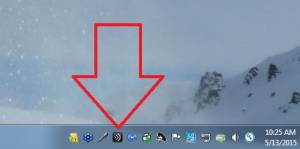
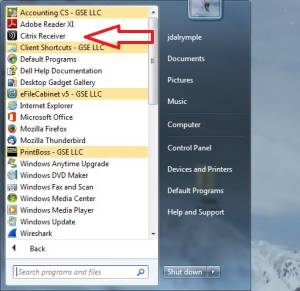
You can find the Receiver app in 1 of 2 ways
- Double-click the tray icon:
- Locate the application in the Start Menu and single-click:


Login:
- After double clicking the Receiver app icon you should see the login screen (unless you're already logged in):
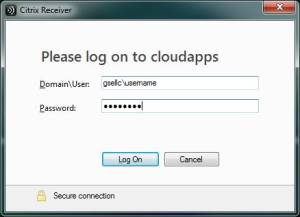
- In the Domain\User field type “gsellc\” followed by your username
- Type your password in the password field
- Click the LogOn button

Add Apps:
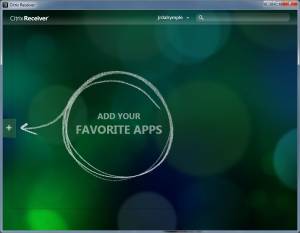
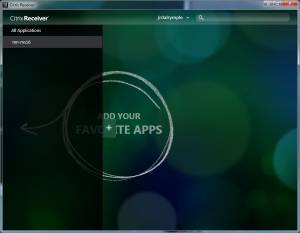
- If this is your first time logging in you won't have any apps in your favorite apps list, to add apps click the (+) button as indicated:
- Click All Applications at the top:
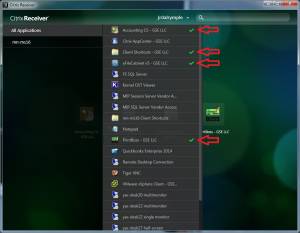
- Click on all the applications you use routinely, green check symbols should appear next to them as you click them:
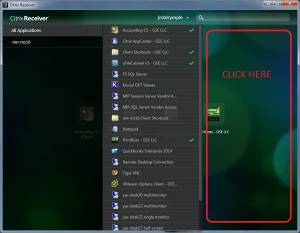
- Once you've selected all the apps you use routinely you can click anywhere outside of the app list to return to your favorite apps list and start working:
- If at any time you wish to add more apps just return to step one of the Add Apps section.


Final Notes:
- Now that you've logged in using the receiver you will have much more convenient access to your applications than you would have going through the cloudapps web interface.
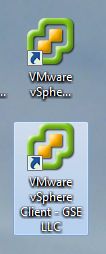
- If configured properly you will end up with Citrix hosted applications on your desktop and in your start menu as shown:
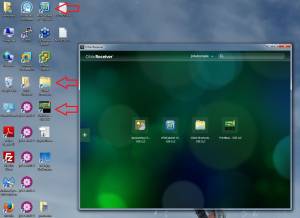
These icons can be used to launch the cloud-based applications conveniently. - Cloud based applications should end in “- GSE LLC” to make it easy to discern cloud based applications from locally installed applications, it is important to make this distinction:
- If at any point you cannot find the receiver app and cannot find the application you wish to launch - you can access the receiver app again using the steps outlined in the Find It section.


gsellcpublic/citrix_receiver_use.1431537675.txt.gz · Last modified: 2018/09/27 02:30 (external edit)