
wiki:public:thunderbird_add_account
This documentation is geared towards Thunderbird and it will also assume that you have a properly functioning autoconfig system in place.
- Start by opening Thunderbird
- If you don't already have an existing E-mail account, Thunderbird will take you directly into the wizard.
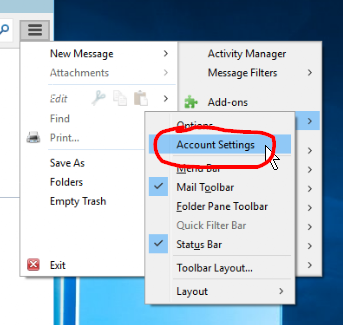
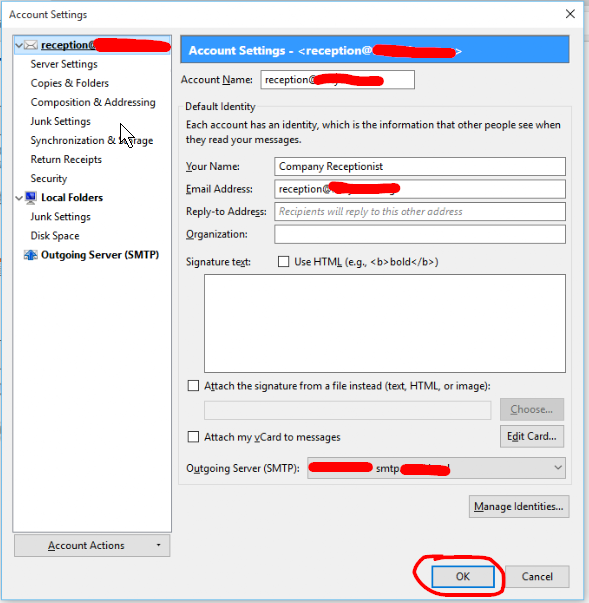
- If you did not get taken directly into the wizard, click the Hamburger Menu → Options → Account Settings
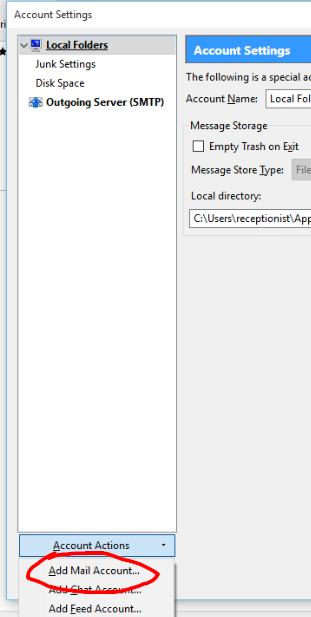
- In the lower left-hand corner expand the Account Actions drop down and click Add Mail Account…
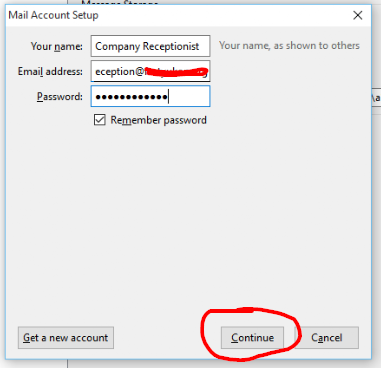
- In the Mail Account Setup window enter your name (as you wish for it to be seen by your recipients), E-mail address and password, click Continue
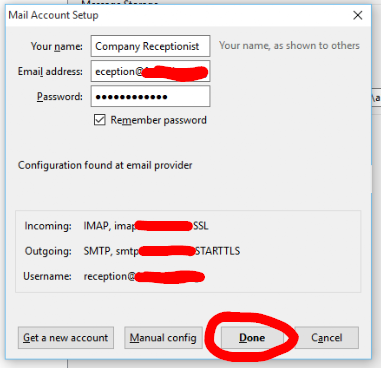
- The screen should change to indicate that it's discovered your server configuration, click Done
- Click OK
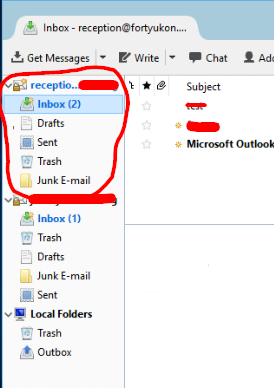
- If you're adding an additional account, it should now show up in the left hand pane of Thunderbird as a whole separate account


wiki/public/thunderbird_add_account.txt · Last modified: 2019/02/11 05:57 by jrdalrymple